Storefront and account region
Shadowrocket isn’t available on the mainland China storefront. The Apple Account used for Media & Purchases determines which App Store storefront you see—not your device’s system language or simply where you are. If Shadowrocket doesn’t appear in search, check your account region first, then look into spelling, content restrictions, or account status.
The App Store button on this page links to Shadowrocket’s US product page. If the page opens in a browser, that only means the page is accessible; it doesn’t confirm that your account is using that storefront or that you can complete a purchase. After opening the App Store, check the product availability, currency, and account prompts shown on your device.
Check your country or region
- Open Settings and tap your Apple Account at the top—the section commonly used to manage Apple ID settings.
- Tap Media & Purchases, choose View Account, and authenticate if prompted.
- Open Country/Region to see your current storefront region. To change it, use the Change Country or Region option on this screen.
- Return to the App Store, confirm which account is signed in, and check whether the product page allows you to buy or redownload the app.
Labels and menu layouts may vary slightly across system versions. Look under your account’s media and purchase settings; changing Language & Region alone doesn’t change your storefront. Device display preferences and the storefront tied to your purchasing account are separate settings.
Whether you can change regions depends on the account requirements Apple shows at the time. You may need to address your balance, active subscriptions, pending transactions, Family Sharing settings, or payment method first. These steps explain where to check; they don’t guarantee that a region change will be approved. Don’t submit the same request repeatedly without reviewing the prompts. See the Getting the App guide for a detailed purchase checklist.
Verify the genuine Shadowrocket app
The name is only a starting clue. Search results may include apps with similar names, similar icons, or overlapping keywords. Don’t identify the app by a nickname alone. Open the full product page and check the developer, official icon, and app ID together. Buy only after all three match.
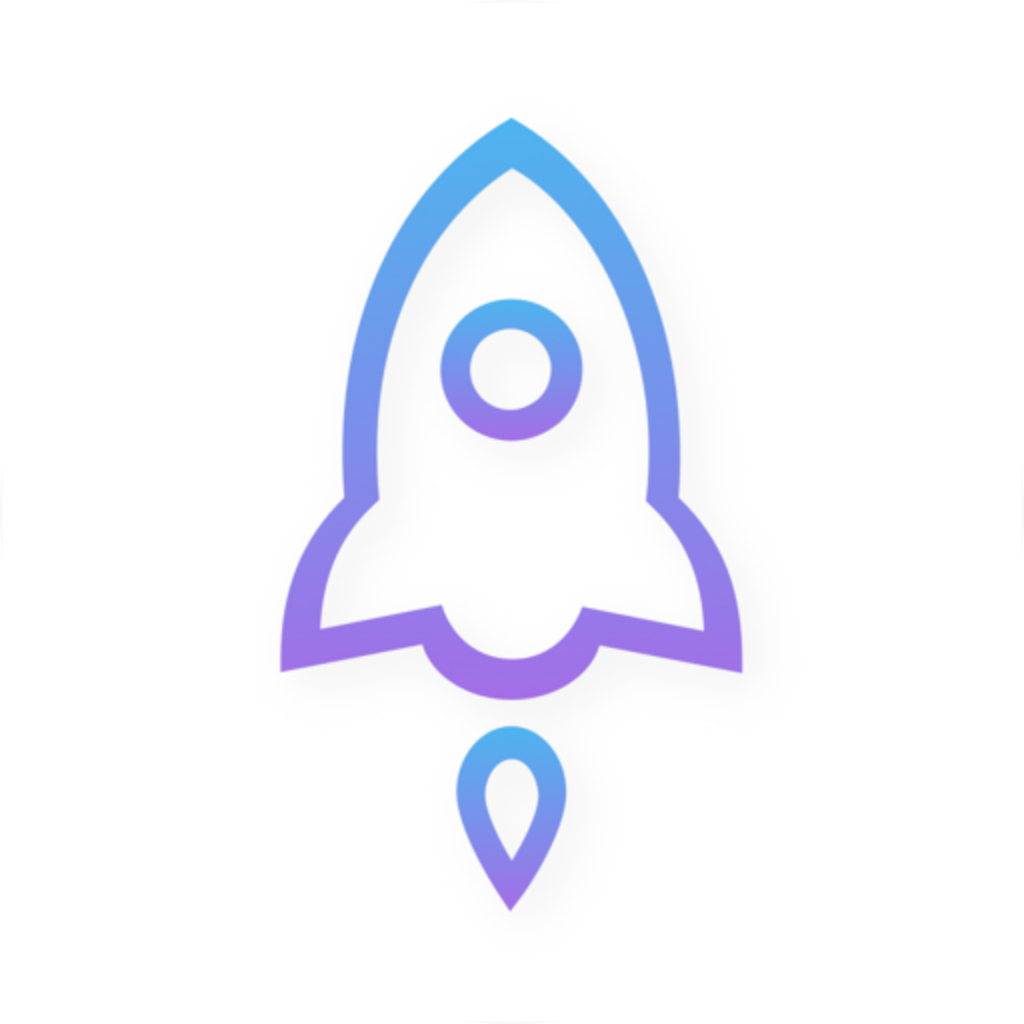
Official icon: rocket outlined in blue and purple on a white background
- Developer
- Shadow Launch Technology Limited
- App ID
932747118- Product name
- Shadowrocket
Check the full product page, not just the search result
Open the product details and check that the developer or seller is Shadow Launch Technology Limited. Then compare the icon with the official icon above to confirm it’s the same app. A similar icon with a different developer is not the same product. A product description that mentions Shadowrocket doesn’t prove that the page is for Shadowrocket.
The app ID is a more reliable way to identify the app. The only App Store link on this page ends in id932747118; the digits are the app ID listed here. You can check them in your browser’s address bar. Prices, product placement, and display language may vary by storefront and page state, so they aren’t substitutes for checking the app ID.
If the product page opened by your device doesn’t match these details, return to this page and check the link before paying. If all three details match but the app is unavailable in your storefront, troubleshoot the storefront region instead of choosing a similarly named app. The steps in this manual refer to the Shadowrocket app verified here.
After installation, you can also confirm the app from your App Store purchase history or its product page. Check both the purchasing account and the app’s identity to avoid selecting the wrong item when switching devices or mistaking a new purchase page for an existing purchase.
Get Shadowrocket on iPhone
On iPhone, first check your storefront region and verify all three app details, then confirm the purchase in the App Store. System requirements are as listed on the App Store page. Expand the product page’s compatibility details to check whether your device meets the requirements. Availability on another device doesn’t guarantee that this device can install the app.
After confirming the account and price, complete the purchase verification as prompted and wait for the App Store download to finish. The App Store handles payment confirmations, download progress, and account messages. If the download remains pending, check your network, available storage, and any App Store account prompts. You don’t need to change Shadowrocket’s connection settings first.
First launch and connection setup
Before opening the app for the first time, have your existing subscription or server details ready. Buying the app gives you access to the client; it doesn’t create a usable connection configuration. Follow the setup guide to import your existing details, then check the selected configuration and Global Routing. Keep interface labels such as Config, Proxy, and Direct in English; they refer to configuration, proxy, and direct routing options.
When you first try to enable a connection, the system may ask to add a VPN configuration. This permission lets the app use system networking features; it isn’t another app purchase. Read the app name and request in the prompt, then authorize if you initiated the action. Enter your device passcode or authenticate in the system interface.
System authorization doesn’t guarantee that your existing server details are valid. If the connection toggle turns on but access isn’t as expected, check the imported details, current selection, and rules separately. If authorization isn’t complete, don’t assume a purchase problem just because the connection fails. The App Store transaction, system authorization, and in-app configuration are three connected but separate steps.
To check whether you’ve purchased the app, open your App Store account and look under Purchased or the equivalent app list on your system. Purchase history confirms which account acquired the app. Home, Config, and Settings in the app are for managing its settings; don’t confuse the two.
iPad and other compatible devices
Shadowrocket is available for both iPhone and iPad. Buy it once with an Apple Account, then get it on another compatible device using that same account. On iPad, first check that Media & Purchases is signed in to the purchasing account, then find Shadowrocket in the App Store’s Purchased section. Device compatibility and purchase availability are as listed on the App Store page.
If the iPad product page still shows a price, check the account and original purchase history before paying. The account used to sync device data may differ from the one used for media purchases. Check the purchasing account actually used by the App Store, not just the name shown on the main Settings screen.
Purchases and configuration are separate
The larger iPad screen, landscape orientation, or different window size may change how lists and details are arranged compared with iPhone. Use interface labels such as Home, Config, and Settings to find the right controls; they don’t need to appear at exactly the same screen coordinates as in the guide. Changing the screen orientation only affects the layout—it doesn’t create a new purchase.
After getting the app on iPad, check the subscriptions, server details, and configuration files on that device. A purchase doesn’t guarantee that every in-app setting will appear automatically. If a list is empty, first confirm that you’ve imported your own details instead of buying the app again. Complete system authorization on the current device when prompted.
The compatibility section describes whether the app supports a device; it doesn’t mean the interface works identically on every device or that every purchase benefit carries over automatically. Check the listing on your target device before buying or restoring the app to distinguish compatibility issues from account issues.
Restore after switching devices or reinstalling
On the App Store, sign in with the Apple Account used for the original purchase and redownload Shadowrocket from Purchased. You usually won’t need to buy it again. Start with your purchase history, not just any search result with the same name. Check the account first, find the app next, then restore your in-app configuration—in that order.
- Open the App Store on your new device, tap your account profile, and confirm which Apple Account is used for purchases.
- Go to Purchased and search for Shadowrocket in the app list for your system. Depending on the system, the list may be under Apps or My Apps.
- Verify the developer and app details, tap the cloud download button, and wait for installation to finish.
- Open the app, import your existing subscription or server details, check Config and Global Routing, then complete system authorization on this device.
Having the app installed on your old device doesn’t mean the account currently in use on your new device has the same purchase. If Shadowrocket isn’t in Purchased, check which account the App Store used on the old device and review its purchase history. If you hid the app, also check your account’s hidden purchases. An icon on the Home Screen alone doesn’t confirm that the current purchasing account is the right one.
If the store still shows a price, pause before paying. Confirm that you opened the product with app ID 932747118 and check whether the original transaction completed. A storefront change, account status, or current product availability may also affect recovery. Follow the App Store account prompts to resolve transaction issues; an in-app switch can’t restore a purchase history.
After installing the app on a new device, check your subscription, server settings, and configuration files one by one. Confirm that your details are complete before enabling the connection. An empty list doesn’t mean the purchase failed to restore.
Family Sharing: what to check
Family Sharing support, access for current family members, and eligibility depend on the App Store listing and the Family Sharing purchase settings on your account. A family member’s ability to download the app in the past doesn’t mean it’s available to every account, region, and device at all times. If it doesn’t appear in the family purchase list, check your storefront and Family Sharing settings before paying again.
Price and one-time purchase
Shadowrocket is a paid app. The US reference price is $2.99 as a one-time purchase, with no monthly fee for the app itself. Other storefronts display local currency, and the price shown on the App Store page at checkout is the actual price. The reference price here doesn’t replace the current checkout amount or predict prices in other storefronts.
A one-time purchase describes how you acquire the app: after purchase, it’s recorded under the associated account, and future downloads are handled through your purchase history. It doesn’t mean the purchase transfers automatically to any account or that the app works on every device under every system condition. Compatibility and purchase availability are as listed on the App Store page.
If Home doesn’t show usable connection details after payment, import your existing information instead of waiting for the App Store to provide connection settings. Whether your connection service is active, its credentials are valid, and its server settings are correct are separate from buying the app. First confirm that you have the app, then check your own details to avoid confusing two different costs and issues.
Updates and transaction history
App updates are delivered through the App Store. Check the automatic app update setting on your device, or look for available updates in your App Store account’s updates list. Refer to the product page for the latest update details. This guide doesn’t list a specific version, so outdated store information isn’t mistaken for a current requirement.
Before confirming a purchase, check your account, the app’s identity, and the price. Afterward, make sure you can access the purchase history. If payment fails, a transaction is pending, or the store asks for more account information, follow the on-screen prompts first. If you have the app but can’t connect, follow the configuration and connection checks in the guide instead of making another purchase.
You should now be able to check four things separately: whether the current storefront offers the app, whether it’s the genuine app, whether the original account has a purchase record, and whether your device has your own connection details ready. Each requires a different check. Verify them one at a time; this is usually more effective than repeatedly signing out or paying again.